Upgrade Procedure Aruba Central and Instant
The prefered upgrade method
Downloading the Firmware and establishing the Upgrade Path
Step 1: Current running firmware
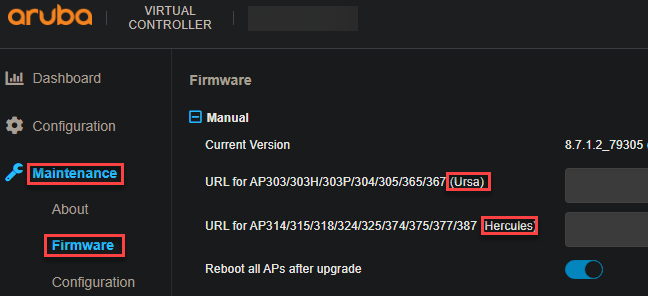
- To know what the current running firmware is, log into the Aruba Instant Virtual Controller > Navigate to "Maintenance" > "Firmware"
- Location of the firmware Name (This will be different depending on what Access Point models).
-
Note down the name as we will need to search for them when downloading the firmware from Aruba's website.
Step 2: Information gathering
- Visit asp.arubanetworks.com then log in with your account (If you don't have access they you won't be able to get this part done)
-
navigate to "Software & Documents"

-
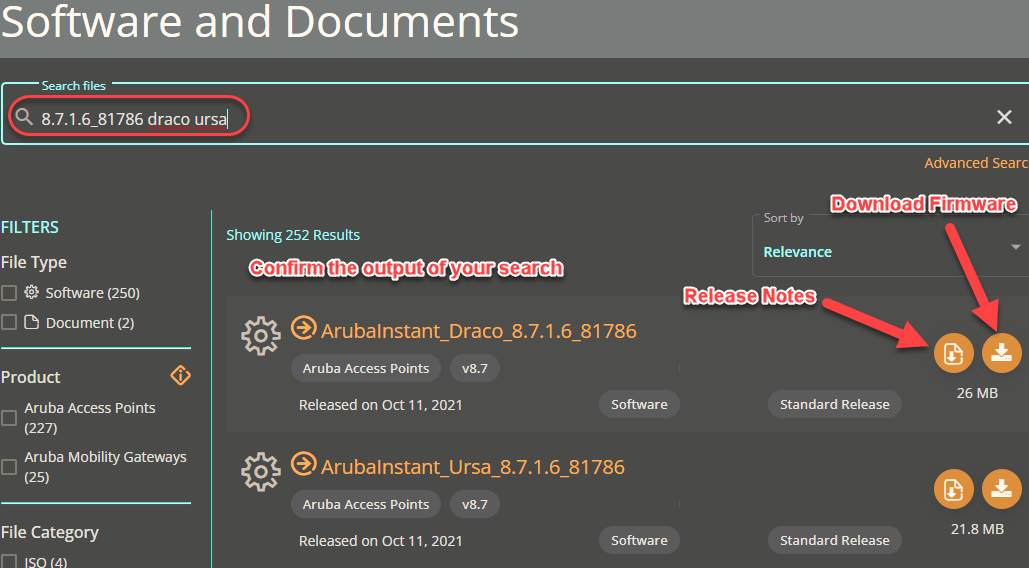
Type the version number as is (including any symbols) in the search field followed by space and the firmware version name we found earlier in the Aruba Virtual Controller firmware section. For example, Ursa, Draco, etc. based on what the Cluster is showing.
IMPORTANT!
You must make sure that the Current Access Points on their current running Firmware are supported on your destination Firmware version.
- If not supported then you will have to figure out the upgrade path by reading the documentation for The latest Firmware and work backward until you establish a path that will upgrade from Current to Target.
- If you ignore this step and the upgrade path is not direct, the Cluster will be lost its entire configuration and you can't restore configuration backup from an older version to a newer one.
-
Download the Release notes by clicking the icon (Repeat this process for each firmware name needed).
-
-
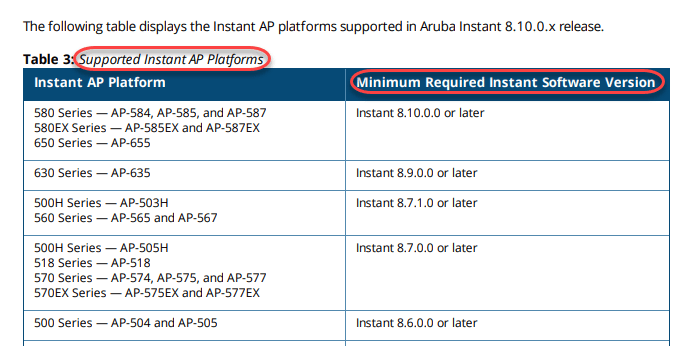
In the Release notes search for Supported Instant AP Platforms (You MUST do this to all the Access Point models you have for the location you are working on):
- You must make sure that all your Access Points are supported on that target firmware, if one isn't there, then DO NOT upgrade to this target firmware and bring this up to MOD's attention.
-
- Example: If you have AP 584 with Firmware Instant 8.6.0 then per the below firmware you can't upgrade to this firmware directly and you would have to upgrade it by steps until you reach that Minimum required version of 8.10.0.0 or later.
If all AP models are supported then you must check the Minimum required Instant firmware to upgrade to your target Firmware.
Step 3: The URLs
Create the URL link
The URL syntax should be as follows, find the below 2 URL formats:
Try and see which one works for you, some versions only work on 1 of the below URLs, don't forget to change the Firmware Version Number!
URL Format 1
http://d2vxf1j0rhr3p0.cloudfront.net/fwfiles/ArubaInstant_NAME_VersionNumber
Below links are examples of the different version names available for firmware version 8.7.1.6_81786
Ursa http://d2vxf1j0rhr3p0.cloudfront.net/fwfiles/ArubaInstant_Ursa_8.7.1.6_81786
Draco http://d2vxf1j0rhr3p0.cloudfront.net/fwfiles/ArubaInstant_Draco_8.7.1.6_81786
Hercules http://d2vxf1j0rhr3p0.cloudfront.net/fwfiles/ArubaInstant_Hercules_8.7.1.6_81786
Gemini http://d2vxf1j0rhr3p0.cloudfront.net/fwfiles/ArubaInstant_Gemini_8.7.1.6_81786
Lupus http://d2vxf1j0rhr3p0.cloudfront.net/fwfiles/ArubaInstant_Lupus_8.7.1.6_81786
Scorpio http://d2vxf1j0rhr3p0.cloudfront.net/fwfiles/ArubaInstant_Scorpio_8.7.1.6_81786
Vela http://d2vxf1j0rhr3p0.cloudfront.net/fwfiles/ArubaInstant_Vela_8.7.1.6_81786
URL Format 2
http://common.cloud.hpe.com/ccssvc/ccs-system-firmware-registry/IAP/ArubaInstant_NAME_VersionNumber
Below links are examples of the different version names available for firmware version 8.10.0.1_84079
Ursa http://common.cloud.hpe.com/ccssvc/ccs-system-firmware-registry/IAP/ArubaInstant_Ursa_8.10.0.1_84079
Vela http://common.cloud.hpe.com/ccssvc/ccs-system-firmware-registry/IAP/ArubaInstant_Vela_8.10.0.1_84079
Test the URL
In your browser first, take the URL you generated and paste it into a new tab in your browser. If it starts to download and the file name and version look correct then you're good to proceed with the next steps. If the URL returns an error that was saying denied access, this method will not work and the only known way is to create a case with Aruba and ask for HTTP links and specify the Firmware version and name that is needed so they can provide you with a working link.
Step 4: The upgrade
-
Login to the Virtual controller Web GUI
-
Go to Maintenance > Firmware
-
From the manual option, enter the respective URL for the models in the tab. using the URL that was generated in point number 1.
-
Make sure to enable the reboot AP option > Click on the upgrade now
-
The loading page should change to Downloading then Upgrading.
- You will need to wait for an Upgrade Successful message.
- The Cluster will then reboot.
- When Cluster is back, log back in.
- You will need to keep monitoring the overview and refreshing the page until all the APs are back online.
- The upgrade can take anywhere from 15-20 Minutes. Keep in mind this time may vary depending on how many APs you have on the cluster.
- Check if the firmware is upgraded in the firmware section.
Troubleshooting
If you're having an issue and the upgrade is failing you can do a few things to check.
- Log in to FTP Server with the user you created and make sure you are able to gain access and view configuration and files.
-
If you're trying to upgrade multiple Images through the CLI command
upgrade-imageAbort this as this only supports single image clusters.
If you try to upgrade through the web with a link [ftp, TFTP, http] and receive an error similar to the one below

You need to check if the Access Point can access the FTP Server you have
You can run telnet FTP_SERVER_IP telnet-port 21 and if it's working then it will show the below 220 response

Is the Virtual Controller having problems obtaining the image?
that's where you can do something similar to running [replace
Example command & output
Most likely you will get a more detailed log than what I showed above and from reading through it you can determine what the issue is.
debug-download ftp://ftpuser:ftpuser123@10.157.167.129/ArubaInstant_Ursa_8.7.1.6_81786
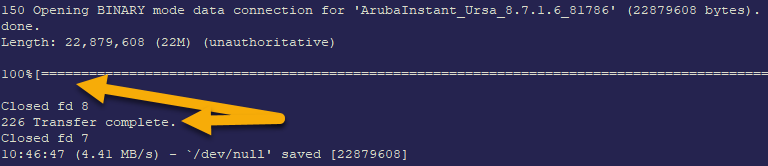
debug-download http://d2vxf1j0rhr3p0.cloudfront.net/fwfiles/ArubaInstant_Ursa_8.7.1.6_81786
if it's working fine you should be getting something like this